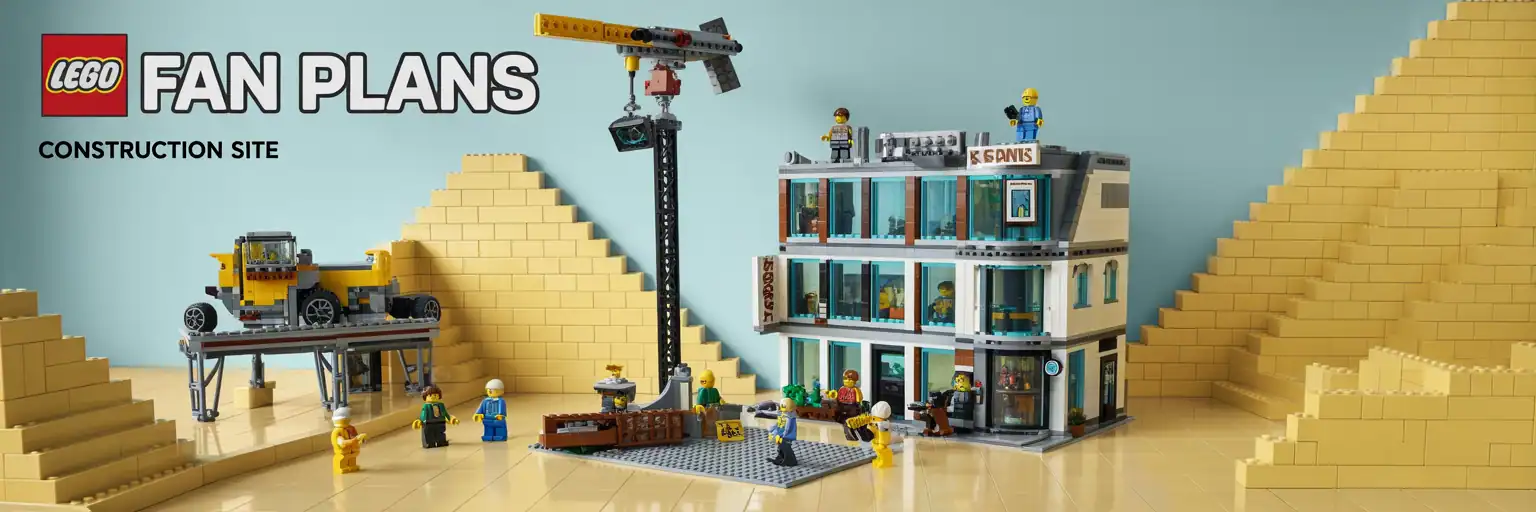
City Construction Site Generator
Plan a realistic LEGO-style construction scene with site layout, cranes, trucks, roadwork, safety barriers, minifigure jobs, modules, and copy-ready build prompts. Use the generator first, then use the guide below to turn the idea into a stronger city display.
 Build more tools from one master pack
Use the $7 AI Generator Master Pack to create more builder tools, prompt packs, and working generator pages.
View the Master PackOutput on Right
The generator writes a quick plan, detailed build guide, parts strategy, and final prompt.
Level 1 — Quick Scene Plan
Level 2 — Detailed Module Guide
Level 3 — Parts and Stability Strategy
Level 4 — Final Copy-Ready AI Prompt
Want to build more prompt tools like this?
Support the project and get the AI Generator Master Pack. It helps builders, creators, and page owners make stronger generators, prompt packs, and SEO pages without starting from a blank screen.
How to Design a Realistic LEGO-Style City Construction Site
A good city construction site build needs more than a crane and a pile of bricks. It needs a clear project, a work zone, safety details, vehicles, materials, and small stories that make the scene feel alive.
This city construction site generator helps builders create a focused LEGO-style construction scene before they start placing parts. It is useful for city layout planning, modular street displays, roadwork dioramas, STEM building activities, and toy-brick construction scene prompts.
Start With One Clear Construction Project
The strongest construction displays have a clear reason for the mess. A downtown tower foundation, road repair scene, utility trench, bridge repair crew, or small apartment build gives every detail a purpose.
For example, a road repair build can include cones, barriers, a trench, pipe sections, a utility van, warning signs, and traffic detour plates. However, a tower foundation scene needs formwork, rebar, concrete trucks, a crane, stacked beams, and a fenced entry gate.
That focus helps your LEGO-style city construction site look planned instead of random. It also helps you decide which vehicles and minifigure jobs belong in the scene.
Use Modules So the Scene Is Easy to Build
Modular construction scenes are easier to move, repair, and expand. Build the base first, then add street edges, excavation areas, vehicle lanes, material stacks, and removable work zones.
A compact 32×32 city module works well for a small work zone. Meanwhile, two 32×32 plates can create a stronger roadwork layout with traffic flow on one side and active construction on the other.
For a larger display, split the build into a site office module, a vehicle staging module, a main work module, and a public street module. This structure gives your construction scene better depth and easier access.
Add Construction Vehicles That Match the Job
Construction vehicles should support the story. A crane works best with beams, pallets, or a tall frame. An excavator works best with a trench, dirt pile, broken pavement, or pipe placement scene.
Use a dump truck when the site needs removed dirt or rubble. Use a concrete mixer when the scene includes formwork, slab work, or foundation pouring. Use a loader or skid steer when you want a busy city worksite with material handling.
Because vehicles take space, do not add every machine at once. Pick two or three strong vehicles, then give each one a clear task.
Make the Work Zone Feel Safe and Real
Safety details make a city construction build feel more believable. Add cones, barriers, temporary fencing, warning signs, hard hats, reflective colors, walkways, tool storage, and a controlled gate.
Also include public-side details. A sidewalk detour, crosswalk closure, temporary ramp, orange barrels, traffic cones, and sign boards help the display feel like a real city project.
These details are small, but they improve the whole model. They also help viewers understand where workers, vehicles, and pedestrians should go.
Use Texture to Show Dirt, Pavement, Steel, and Concrete
Construction sites need texture. Smooth tiles can show clean sidewalks or finished pavement. Plates, jumpers, grille tiles, wedge plates, and masonry bricks can show broken ground, stacked materials, and unfinished walls.
Try mixing light gray, dark gray, tan, reddish brown, and black for the ground. However, keep each zone readable. Too many random colors can make the site look messy instead of detailed.
For a premium shelf display, use tile-smooth borders around rough work areas. This contrast makes the active construction zone stand out.
Plan Minifigure Jobs and Story Moments
Minifigures turn a construction layout into a story. Add a foreman, crane operator, dump truck driver, safety inspector, surveyor, welder, traffic flagger, and two workers moving materials.
Small scenes also help. Add a coffee break, a toolbox check, a delivery clipboard, a survey tripod, a worker pointing at blueprints, or an inspector checking a barrier line.
These details create a display that people study longer. More story moments can also make your construction site page or social post more engaging.
Build for Stability Before Details
Start with a strong base. Overlap plates, stagger seams, and reinforce tall structures with hidden cores. A crane, scaffold, or tall steel frame should not rely on one weak connection.
Use larger plates under road sections. Then lock the surface with tiles and offset plates. For removable modules, create clean lift points so the scene can be handled without breaking.
This generator gives a planning prompt, but your final build should still be tested. Lift the base, move vehicles, rotate the crane, and check any tall sections before display.
Best Long-Tail Uses for This Generator
- LEGO city construction site ideas for a modular street display.
- Construction vehicle diorama prompt for cranes, trucks, and excavators.
- Roadwork scene generator for toy-brick city layouts.
- Realistic construction MOC planning guide for city builders.
- STEM construction site build activity for classrooms or clubs.
- Detailed LEGO-style urban work zone with safety barriers and crews.
Why This Tool Helps Builders Move Faster
Many builders lose time because they begin with loose ideas. This tool turns the idea into a scene plan, module list, vehicle strategy, parts direction, and final AI prompt.
As a result, you can test several construction site layouts before collecting parts. You can also copy the final prompt into an AI assistant and ask for a more detailed plan, shopping list, or image concept.
The best use is simple. Generate a plan, remove details you do not need, add your real parts limits, and then build a test module first.
What to Do Next
After you generate a construction scene, move from idea to build plan. These steps help turn a prompt into a stronger city display.
More Builder Tools and Planning Guides
These links are chosen for city builders, prompt users, and LEGO-style plan creators who want stronger build ideas instead of generic inspiration.