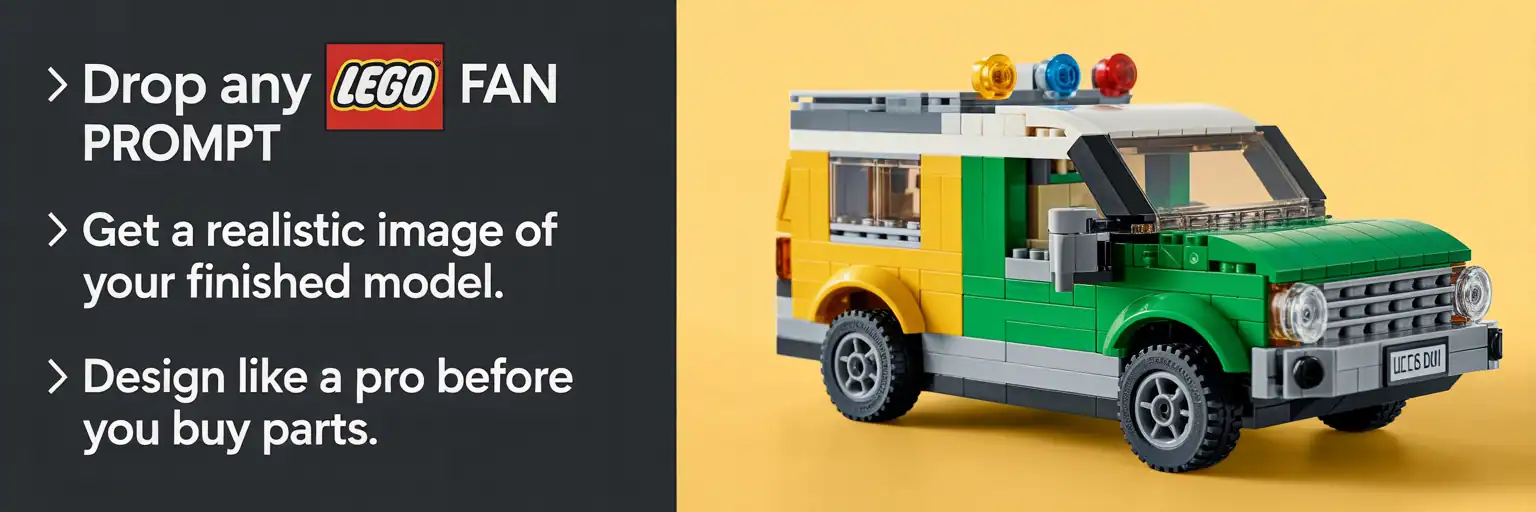
Final Build Mockup Generator for LEGO® MODs — Instantly Visualize Your Model
Paste any LEGO1 Fan Plans prompt into chat and generate a studio-grade, AI-powered LEGO® mockup of your finished model before you order parts or start building. This final build mockup tool mirrors the concept-viz workflow used by professional LEGO kit and MOC designers.
How to Use the LEGO® Final Build Mockup (60-Second Setup)
- Create your build plan with any LEGO1 Generator (Classic, Fiesta, or WTF series).
- Copy the LEGO1 Fan Plans prompt into your AI chat window.
-
Ask the bot:
Show me a detailed final Lego block build image as you would build it using the plans - Save, share, or compare your studio-style LEGO mockup image before buying parts.
SEO tip: include your set theme (city, space, cruiser, tank, diorama), target scale (minifig, microscale, 8-stud-wide), and “use only real LEGO element geometry and production colors” for highly relevant, buildable LEGO mockups.
AI LEGO® Design Mockups — Frequently Asked Questions
Does AI replace real LEGO building?
No. The AI mockup is a visualization step, like a digital light-table or studio render. You still make every design decision. The AI simply generates a fast, photo-quality preview so you can refine form, color, and modules before committing to physical bricks.
Are the LEGO mockup images realistic to build?
The images follow sensible wall thicknesses and geometry. Treat them as a guide to check proportions, color blocking, and module splits first. Then translate what works into a Studio/LDraw file and a real-world LEGO parts list.
Why do professional LEGO designers use digital mockups?
Professionals iterate quickly on shape and color with digital mockups to save time and budget. This tool brings that same studio workflow to MOD builders, helping you test ideas, control cost, and present your LEGO models at a professional level.
How do I keep the mockup limited to real LEGO parts and colors?
Add constraints such as “use only existing LEGO element geometry and production colors” and “no custom or fantasy parts.” These phrases push the AI toward buildable shapes and official-style color palettes.
Will the mockup respect minifig scale or other target scales?
Yes — include your target scale directly in the prompt, such as “minifig scale (1:42)” or “microscale,” and note constraints like “fits a minifig inside” or “8-stud-wide vehicle.” Scale cues help keep all LEGO proportions consistent.
Can I request multiple views or exploded modules for planning?
Absolutely. Ask for “three angles: front 45°, rear 45°, top” or for an “exploded view showing module splits and connection points.” This makes it easier to plan subassemblies and structural hand-offs before you buy parts.
What if the image looks too smooth or not ‘studly’ enough?
Use prompt cues like “visible studs on top surfaces,” “use tiles sparingly,” or “show anti-studs underneath where appropriate.” These instructions increase brick texture realism and make the mockup feel more like an authentic LEGO model.
How do I go from mockup image to parts list and digital file?
Rebuild the preview in BrickLink Studio or another LEGO CAD tool, export the parts list, and verify colors against current availability on marketplaces like BrickLink. Swap rare or expensive elements for more common parts to keep your budget under control.